
Settings
To configure settings for your paywall, click the Settings button from the sidebar:
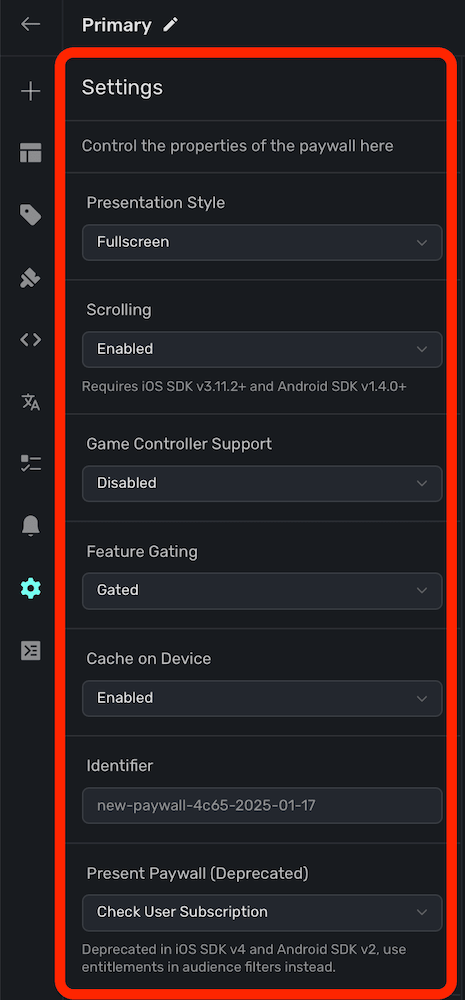
Use this menu for paywall-wide presentation and behavior settings. The fields shown can vary by platform and account features, but each setting starts with a default value.
Presentation Style
Toggle the presentation style of your paywall. Available options are:
- Fullscreen: The paywall will cover the entire device screen.
- Push: The paywall will push onto a hierarchy, such as a
UINavigationControlleron iOS. - Modal: The paywall presents with the platform's default modal API.
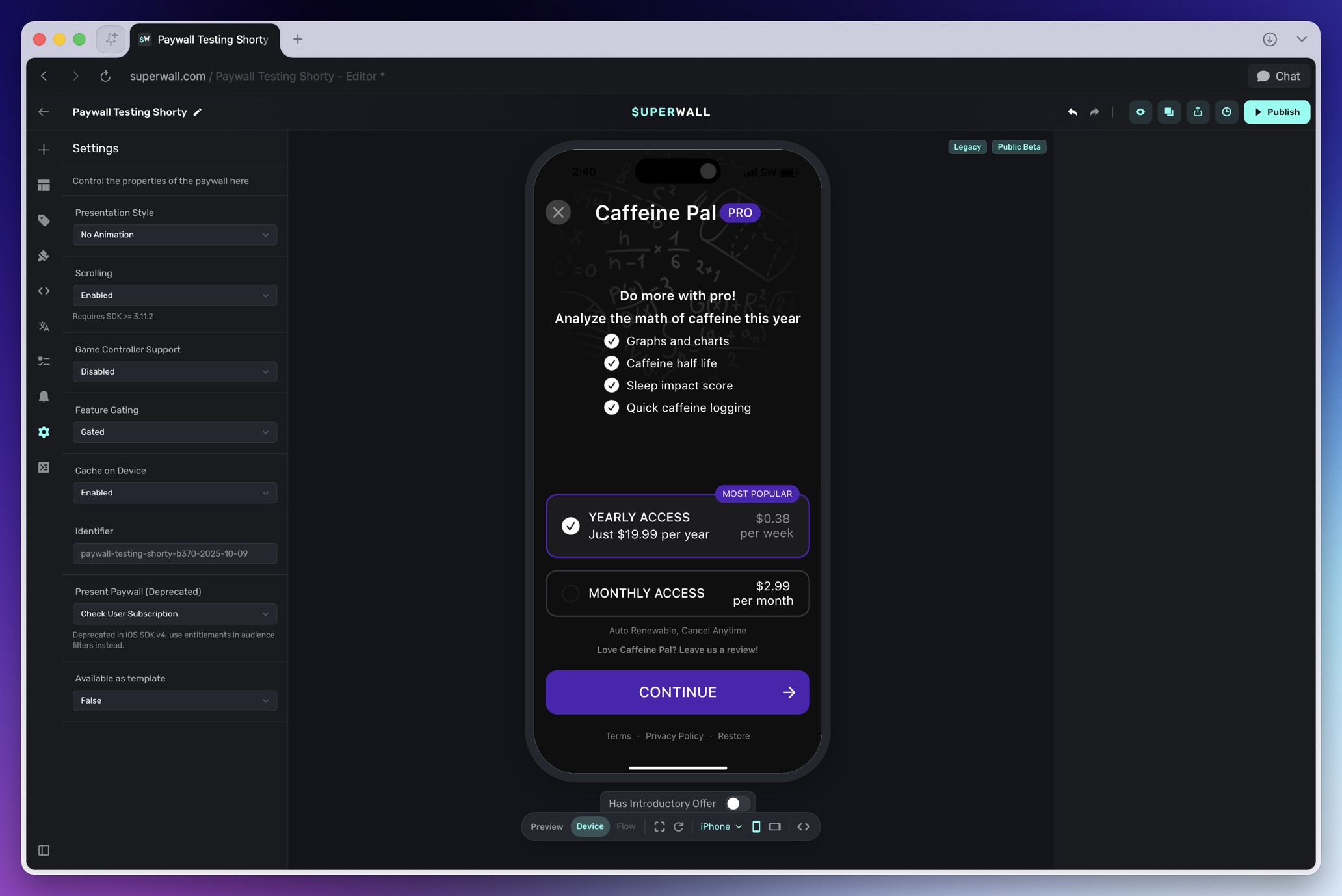
- No Animation: The paywall presents modally, but without any animation.
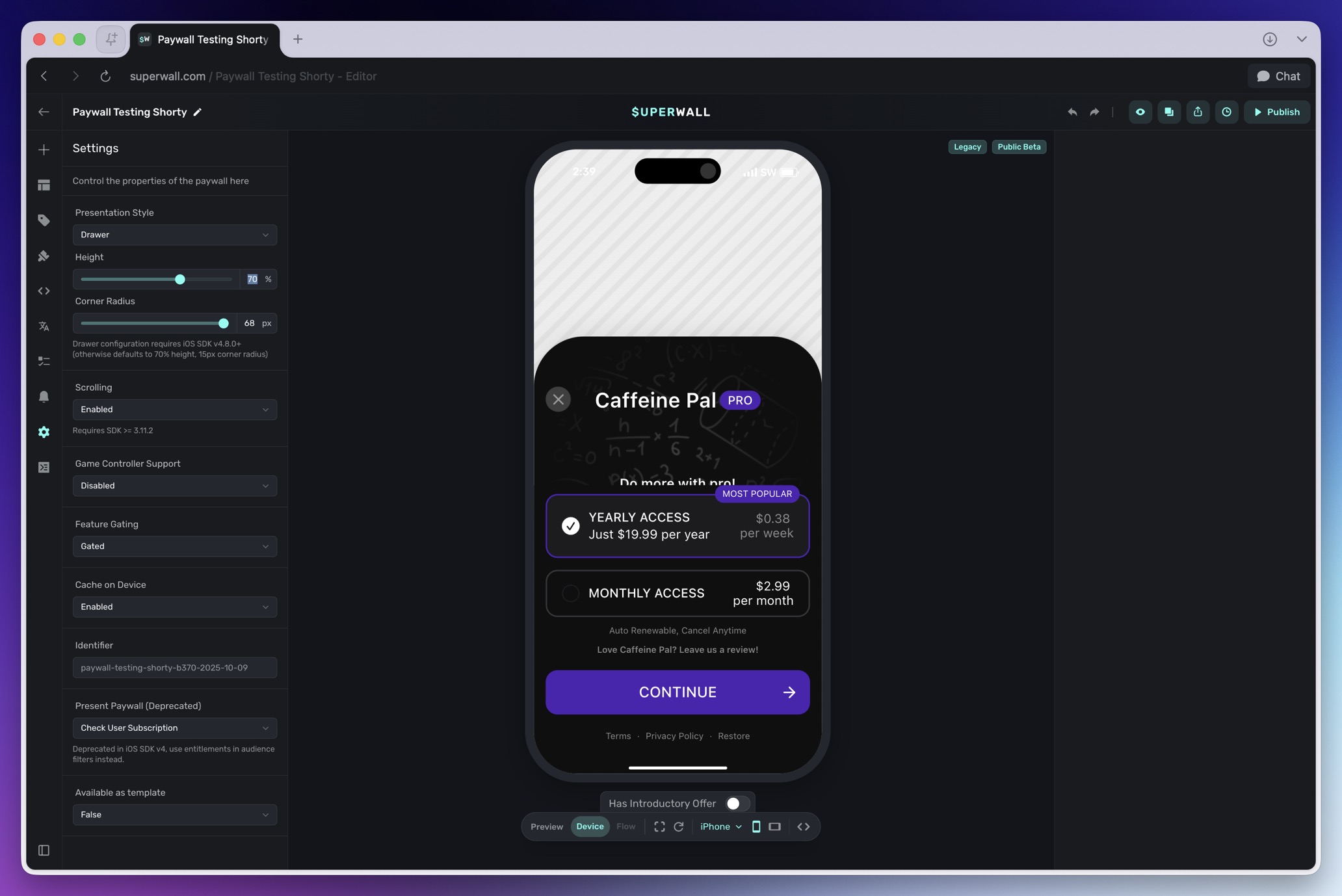
- Drawer: The paywall presents from a bottom drawer with customizable height and corner radius.
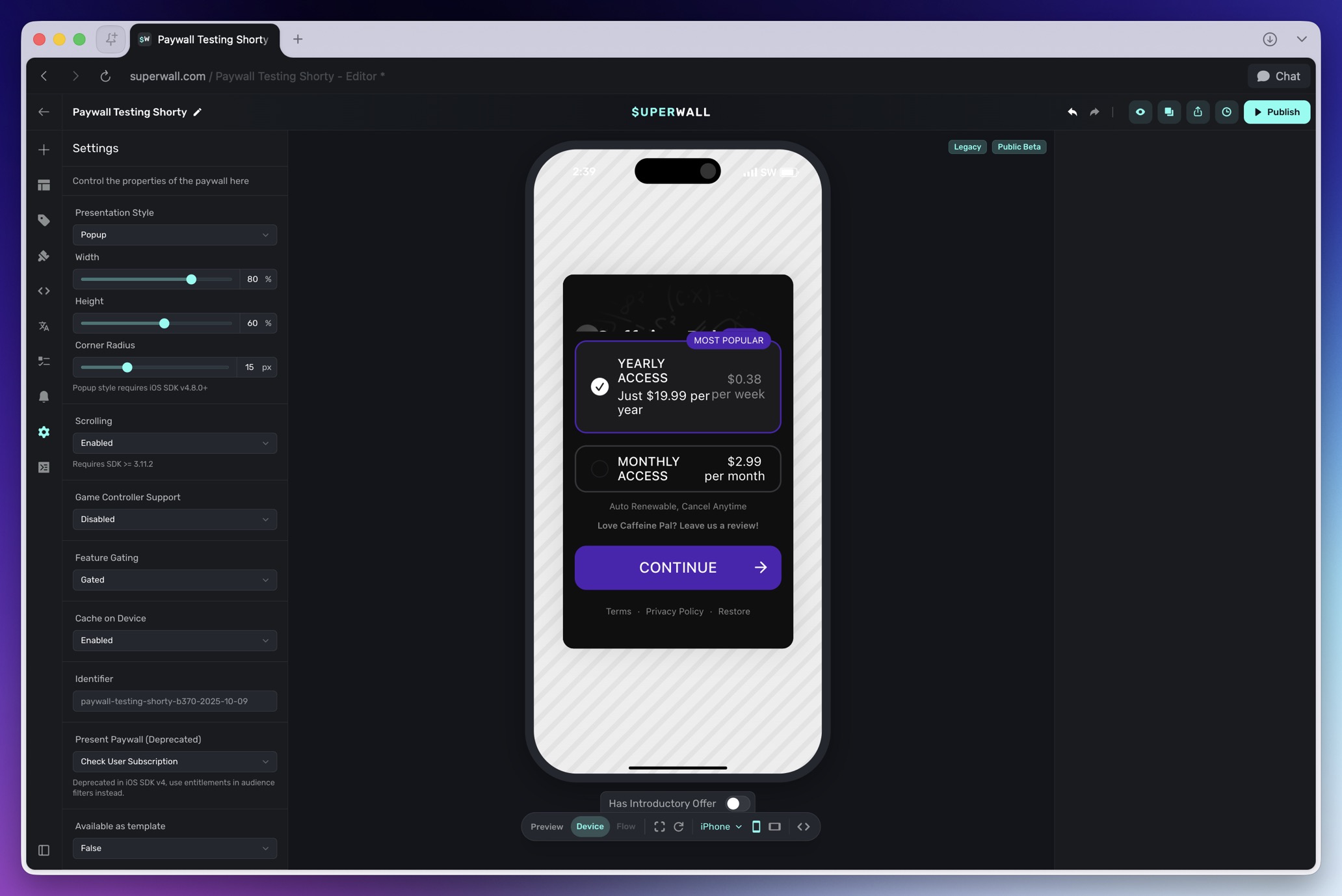
- Popup: The paywall presents as a modal popup with customizable width, height, and corner radius from the center of the screen.
Presentation Style Examples
These examples use the same paywall so the presentation differences are easier to compare.
Fullscreen fills the device screen.
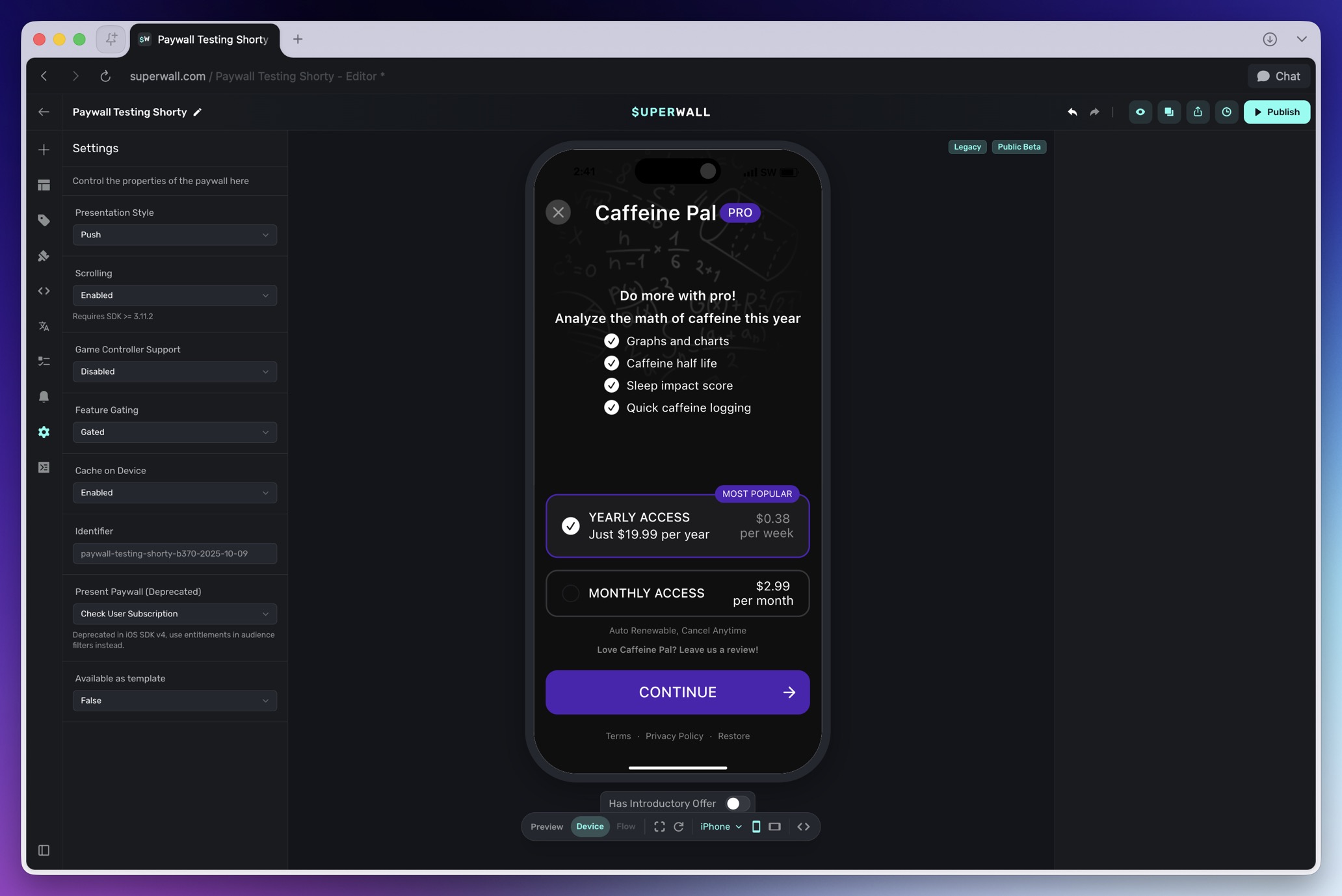
Push presents the paywall through the app's navigation stack.
Modal uses the platform's default modal presentation.
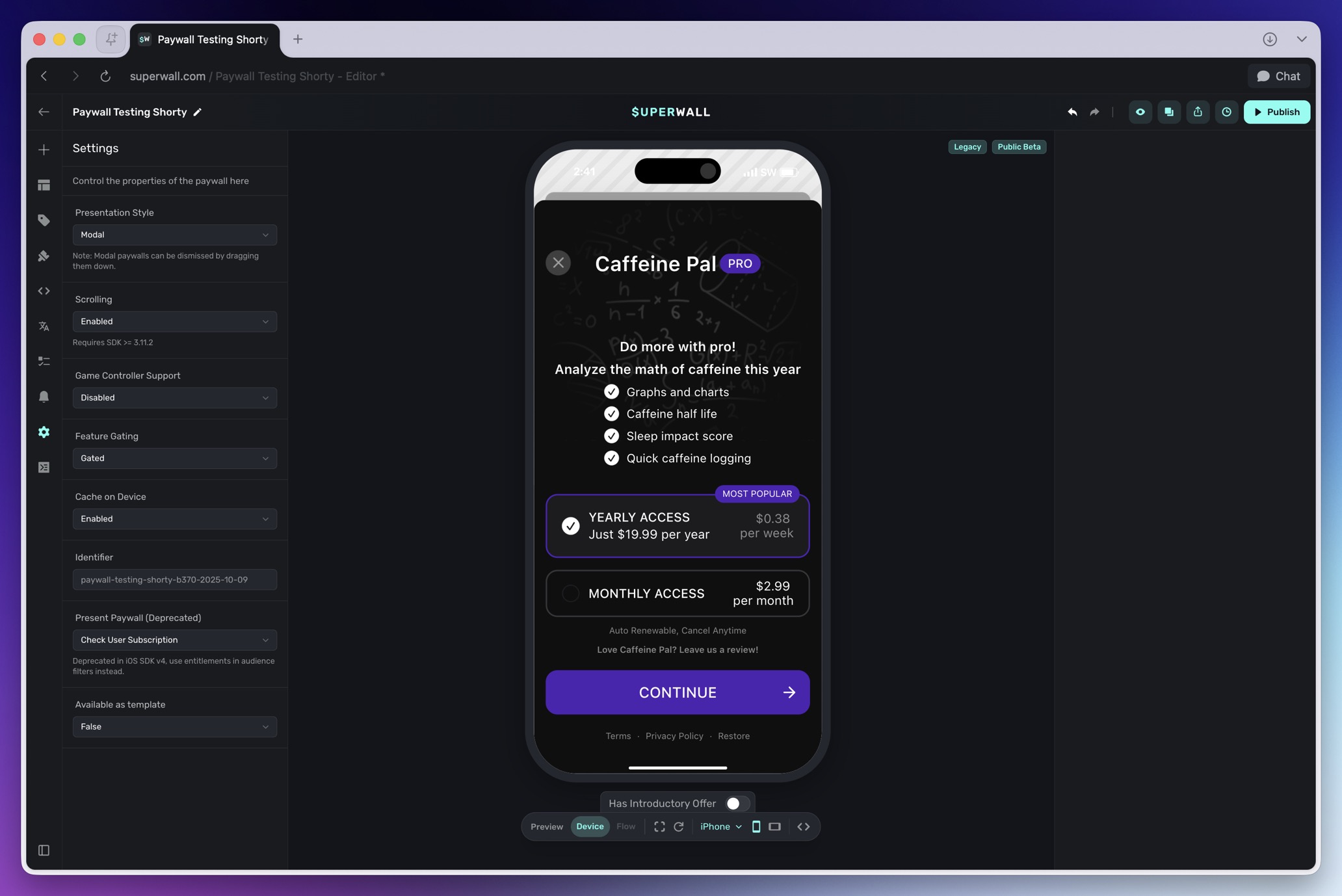
No Animation presents modally without the transition animation.
Drawer presents from the bottom of the screen.
Popup presents in the center of the screen with configurable sizing.
Drawer Configuration
When using the Drawer presentation style, you can configure:
- Height: Set the height of the drawer as a percentage of the screen (default: 70%).
- Corner Radius: Set the corner radius for the drawer corners (default: 15px).
- Scrolling: Enable or disable scrolling within the drawer.
Popup Configuration
When using the Popup presentation style, you can configure:
- Width: Set the width of the popup as a percentage of the screen (default: 80%).
- Height: Set the height of the popup as a percentage of the screen (default: 60%).
- Corner Radius: Set the corner radius for the popup corners (default: 15px).
Popup style requires iOS SDK v4.8.0+
Scrolling
Toggle the scrolling behavior of your paywall. Available options are:
- Enabled (Default): The paywall can scroll its contents when presented on a device.
- Disabled: Disables all scrolling behavior on the paywall.
Requires iOS SDK v3.11.2+ and Android SDK v1.4.0+
Game Controller Support
Toggle game controller support for paywalls — obviously, ideal for paywalls shown in games where controllers may be in use. Available options are:
- Enabled: The paywall can scroll its contents when presented on a device.
- Disabled (Default): Disables all scrolling behavior on the paywall.
Learn more about game controller support here.
Feature Gating
Feature gating allows you to control whether or not placements should restrict access to features. Using either method, the paywall will still be presented if a user isn't subscribed:
- Non Gated: Placements will always fire your feature block. Specifically, once the paywall is dismissed.
- Gated: Placements will only fire your feature block if the user is subscribed. Note that if they are subscribed, the paywall will not be presented.
For example:
// With non gated - `logCaffeine()` is still invoked
Superwall.shared.register(placement: "caffeineLogged") {
  logCaffeine()
}

// With gated - `logCaffeine()` is invoked only if the user is subscribed
Superwall.shared.register(placement: "caffeineLogged") {
  logCaffeine()
}
This is useful to dynamically change what is paywalled in production without an app update. For example, in a caffeine tracking app — perhaps you might run a weekend campaign where logging caffeine is free. You'd simply change the paywall to be Non Gated. Then, the paywall would still be presented, but users would be able to continue and log caffeine.
For information on how this behaves when offline, view this section.
Feature gating does not apply if you are manually presenting a paywall via getPaywall.
Cache on Device
If enabled, Superwall's SDK will cache the paywall on device. This can be useful if you have a paywall that could take a few seconds to fetch and present (i.e. if there is a video as part of your design). On-device caching can lead to quicker presentation.
Identifier
The identifier for the paywall. Non-editable.
Present Paywall
This is now deprecated in iOS SDK version 4 and above, and version 2 and above for all other SDKs. Instead, use the entitlements feature when creating campaign filters.
You can have a paywall present under two different conditions when a placement is matched:
- Check User Subscription: Present the paywall only if the user's subscription is not active.
- Always: Present the paywall regardless of the user's subscription status.
Reroute back button
If enabled, allows you to run custom logic on back button press and consuming the event.
To use it, once the option has been enabled, use the PaywallOptions.onBackPressed and return true to consume the back press event or false to let the SDK handle it.
How is this guide?